> ## Documentation Index
> Fetch the complete documentation index at: https://q.odontox.io/llms.txt
> Use this file to discover all available pages before exploring further.
# Daily Brief — AI Morning Clinic Summary
> An AI-generated morning operational summary covering your clinic's schedule, revenue snapshot, alerts, and opportunities so you can start the day prepared.
The Daily Brief gives clinic owners and admins a concise operational overview every morning. Instead of checking multiple dashboards to understand where things stand, you get a single AI-generated summary that covers your schedule, revenue, and anything that needs attention.
**Admins & Doctors** see the daily brief.
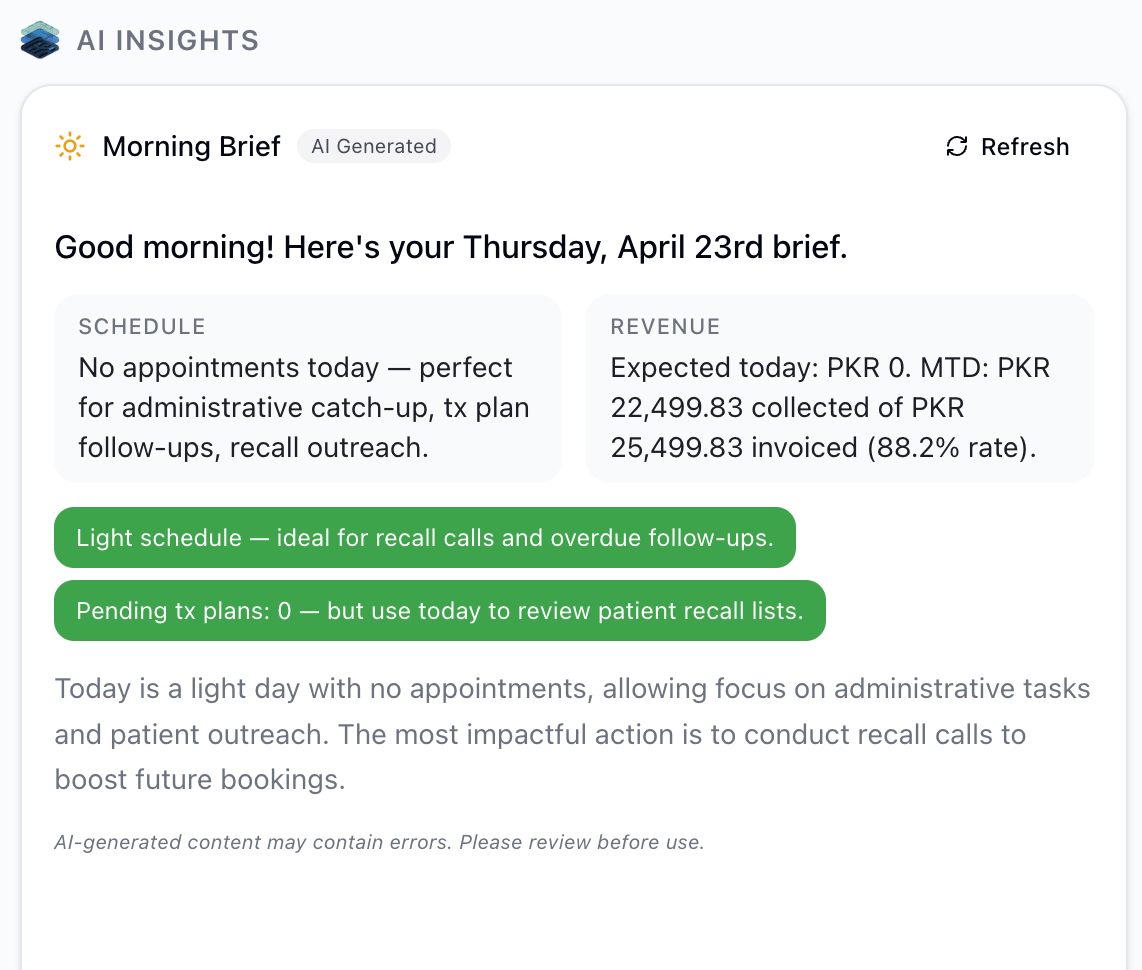 ## What the brief covers
The brief opens with a greeting that includes your name and the current date, setting context for the day ahead.
How many appointments are booked for today, broken down by confirmation status. You'll immediately see if there are unconfirmed appointments that need follow-up.
Three key numbers: expected revenue for today (based on scheduled appointments), month-to-date collections, and month-to-date invoiced amounts. This gives you a quick read on how the month is tracking.
Issues that need your attention right now. Examples include unconfirmed appointments for today, overdue invoices that haven't been followed up on, and pending treatment plans approaching expiration.
Revenue and engagement opportunities the AI has identified. These might include pending treatment plans that could convert with a follow-up call, light schedule days that are good for recall outreach, or patterns suggesting a good time for a specific campaign.
A closing paragraph that ties everything together with a brief assessment of the day's outlook.
## How to access the daily brief
Click Ruby Insights in the sidebar.
The daily brief sits at the top of the **Plan ahead** section. If no one in your clinic has generated it yet today, click the generate button.
Use the alerts and opportunities sections to prioritize your morning — confirm appointments, follow up on overdue invoices, or call patients with pending plans.
Make the daily brief part of your morning routine. Generate it when you arrive, review the alerts, and delegate action items to your team before the first patient walks in.
## Revenue metrics explained
The revenue snapshot in the daily brief uses specific calculations to ensure accuracy:
* **Expected revenue today** — based on scheduled appointments and their associated treatment values
* **MTD collected** — actual payments received so far this month
* **MTD invoiced** — total invoices issued this month
* **Collection rate** — calculated only on invoices whose due date has already passed
Invoices with future installment due dates are excluded from the collection rate calculation. This prevents installment-based payment plans from artificially lowering your collection rate when payments aren't yet due.
## Caching and refresh
The daily brief is **cached per clinic and shared across all admins**. The first person to open Ruby Insights each day generates it, and everyone else in the clinic sees the same brief instantly. A **"Cached · X ago"** badge shows when it was last generated, with a **Refresh** button alongside it. The cache refreshes automatically at the end of the working day (Pakistan time) or after 24 hours.
If you need fresh data — for example, after confirming several appointments or processing a batch of payments — use the **Refresh** button to regenerate. A refresh counts as a new generation.
Each generation counts toward your **15 per day** rate limit, shared across all Ruby features. Routine page loads don't count — only an explicit Refresh or Generate does.
## Practical scenarios
Pull up the daily brief during your team's morning meeting to align everyone on the day's priorities, outstanding items, and revenue targets.
Refresh the brief at the end of the day to see updated collection figures and confirm that action items from the morning have been addressed.
When the brief shows a light schedule, use the opportunities section to identify recall patients or pending treatment plans worth a follow-up call.
Toward the end of the month, the MTD figures in the daily brief help you quickly assess whether you're on track to meet revenue goals.
## Related articles
* [AI Overview](/ai/overview) — rate limits, AI principles, and the full list of AI features
* [Revenue Forecast](/ai/revenue-forecast) — a 30-day forward-looking revenue prediction
* [Payment Reminders](/ai/payment-reminders) — follow up on the overdue invoices flagged in your brief
* [Treatment Follow-ups](/ai/treatment-followups) — act on the pending treatment plans the brief highlights
## What the brief covers
The brief opens with a greeting that includes your name and the current date, setting context for the day ahead.
How many appointments are booked for today, broken down by confirmation status. You'll immediately see if there are unconfirmed appointments that need follow-up.
Three key numbers: expected revenue for today (based on scheduled appointments), month-to-date collections, and month-to-date invoiced amounts. This gives you a quick read on how the month is tracking.
Issues that need your attention right now. Examples include unconfirmed appointments for today, overdue invoices that haven't been followed up on, and pending treatment plans approaching expiration.
Revenue and engagement opportunities the AI has identified. These might include pending treatment plans that could convert with a follow-up call, light schedule days that are good for recall outreach, or patterns suggesting a good time for a specific campaign.
A closing paragraph that ties everything together with a brief assessment of the day's outlook.
## How to access the daily brief
Click Ruby Insights in the sidebar.
The daily brief sits at the top of the **Plan ahead** section. If no one in your clinic has generated it yet today, click the generate button.
Use the alerts and opportunities sections to prioritize your morning — confirm appointments, follow up on overdue invoices, or call patients with pending plans.
Make the daily brief part of your morning routine. Generate it when you arrive, review the alerts, and delegate action items to your team before the first patient walks in.
## Revenue metrics explained
The revenue snapshot in the daily brief uses specific calculations to ensure accuracy:
* **Expected revenue today** — based on scheduled appointments and their associated treatment values
* **MTD collected** — actual payments received so far this month
* **MTD invoiced** — total invoices issued this month
* **Collection rate** — calculated only on invoices whose due date has already passed
Invoices with future installment due dates are excluded from the collection rate calculation. This prevents installment-based payment plans from artificially lowering your collection rate when payments aren't yet due.
## Caching and refresh
The daily brief is **cached per clinic and shared across all admins**. The first person to open Ruby Insights each day generates it, and everyone else in the clinic sees the same brief instantly. A **"Cached · X ago"** badge shows when it was last generated, with a **Refresh** button alongside it. The cache refreshes automatically at the end of the working day (Pakistan time) or after 24 hours.
If you need fresh data — for example, after confirming several appointments or processing a batch of payments — use the **Refresh** button to regenerate. A refresh counts as a new generation.
Each generation counts toward your **15 per day** rate limit, shared across all Ruby features. Routine page loads don't count — only an explicit Refresh or Generate does.
## Practical scenarios
Pull up the daily brief during your team's morning meeting to align everyone on the day's priorities, outstanding items, and revenue targets.
Refresh the brief at the end of the day to see updated collection figures and confirm that action items from the morning have been addressed.
When the brief shows a light schedule, use the opportunities section to identify recall patients or pending treatment plans worth a follow-up call.
Toward the end of the month, the MTD figures in the daily brief help you quickly assess whether you're on track to meet revenue goals.
## Related articles
* [AI Overview](/ai/overview) — rate limits, AI principles, and the full list of AI features
* [Revenue Forecast](/ai/revenue-forecast) — a 30-day forward-looking revenue prediction
* [Payment Reminders](/ai/payment-reminders) — follow up on the overdue invoices flagged in your brief
* [Treatment Follow-ups](/ai/treatment-followups) — act on the pending treatment plans the brief highlights